
Open practice / Tools & skills
Tools for
inclusive design.
A considered collection for inclusive design, accessibility, and working with AI.

Start here · Open source
AI A11y Toolkit
Bring accessibility requirements into AI-assisted design and development. Guidance you can carry into your tools, prompts, and project workflows.
Use it as a starting point. Generated work still needs testing with people and assistive technology.

DesignA11y / Building in the open
Designed for people.
Defined for AI.
Explore the design system behind DesignA11y: inclusive foundations, reusable components, Figma Specs and machine-readable guidance that carries intent into implementation.
Explore the DesignA11y Design System
A working reference, tested in practice. Public beta available in Figma Community.
AI & design
workflows
Official guide
Figma MCP server
Bring structured design context into an AI coding workflow. Pair it with explicit accessibility requirements and verify the output.
Figma · setup required
Code Connect
Connect Figma components to their code implementations. Add component-specific accessibility instructions so AI has more than a visual reference.
Figma · paid plans
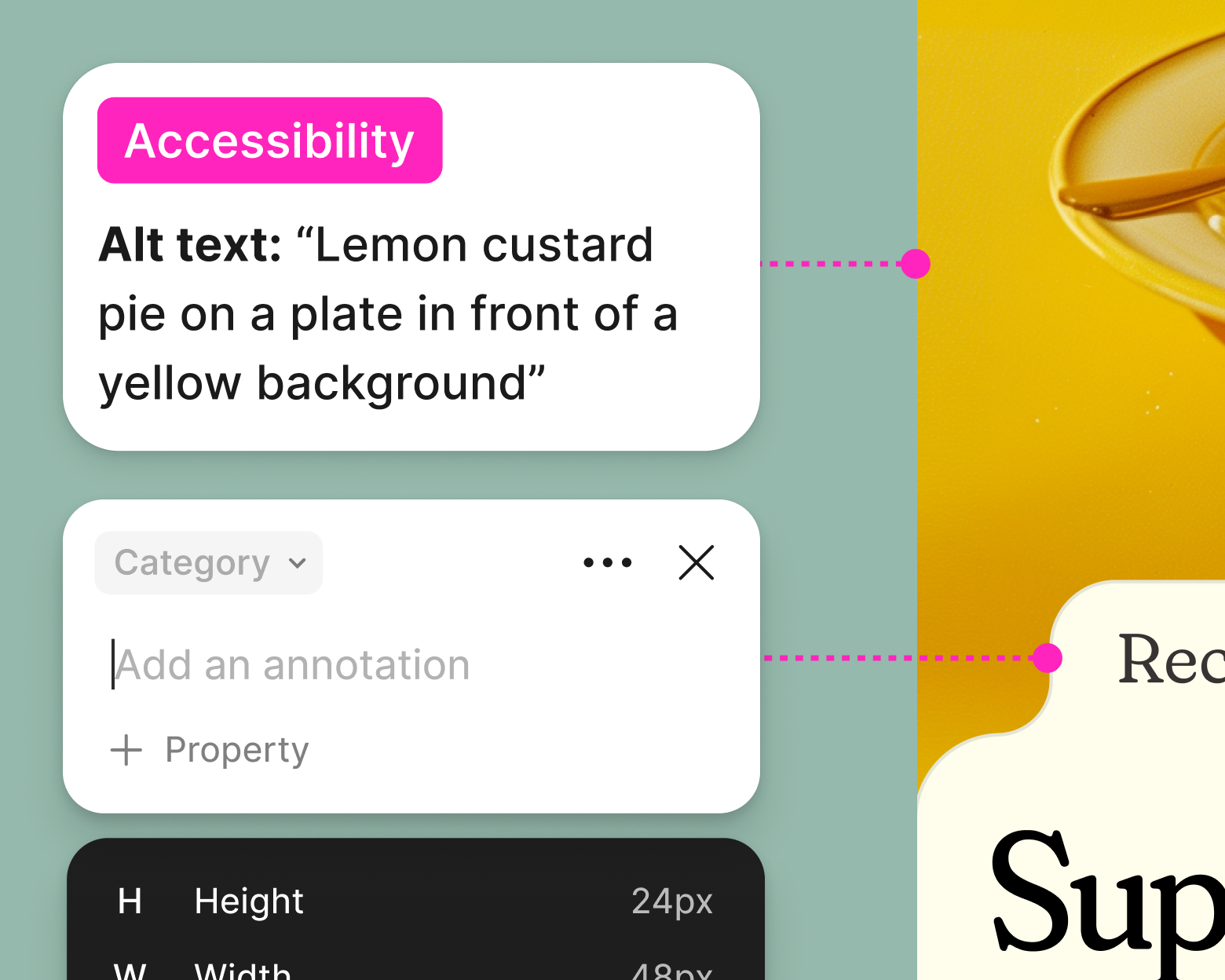
Native Figma annotations
Attach behavior, content and accessibility notes to the relevant layers. Use categories to make requirements easier to find in Dev Mode.
Developer reference
Machine-readable annotations
Explore Figma’s Annotation API for notes and pinned properties. Define a consistent structure for semantics, names, keyboard behavior and states; verify what your integration actually reads.
Design & build / Starting points
See the system.
Explore the visual language and the behavior behind it. Open-source systems and commercial libraries with documented accessibility foundations.
These are starting points, not accessibility certifications. Check licensing, keyboard behavior, focus, contrast and assistive technology support in your own implementation.
Open source · Design system
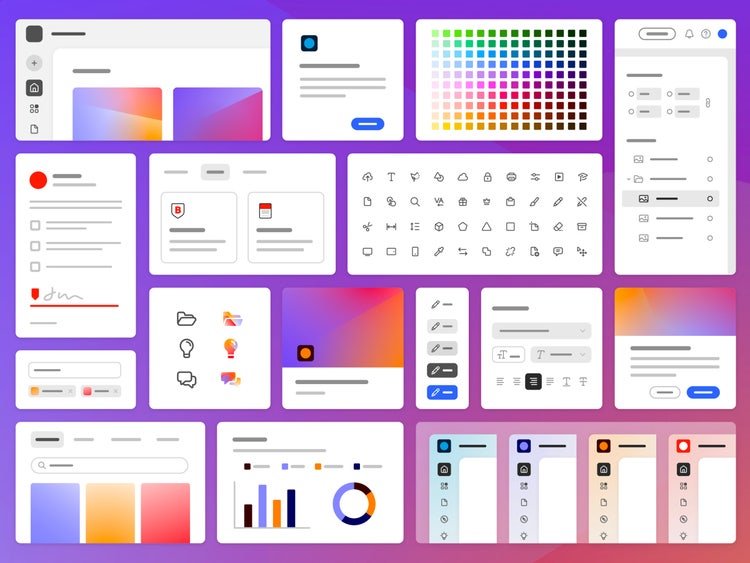
Adobe Spectrum
Explore components, tokens and platform guidance. Accessibility is part of the system; implementation and content still need testing.
Preview: Adobe · View resource
Open source · Design system
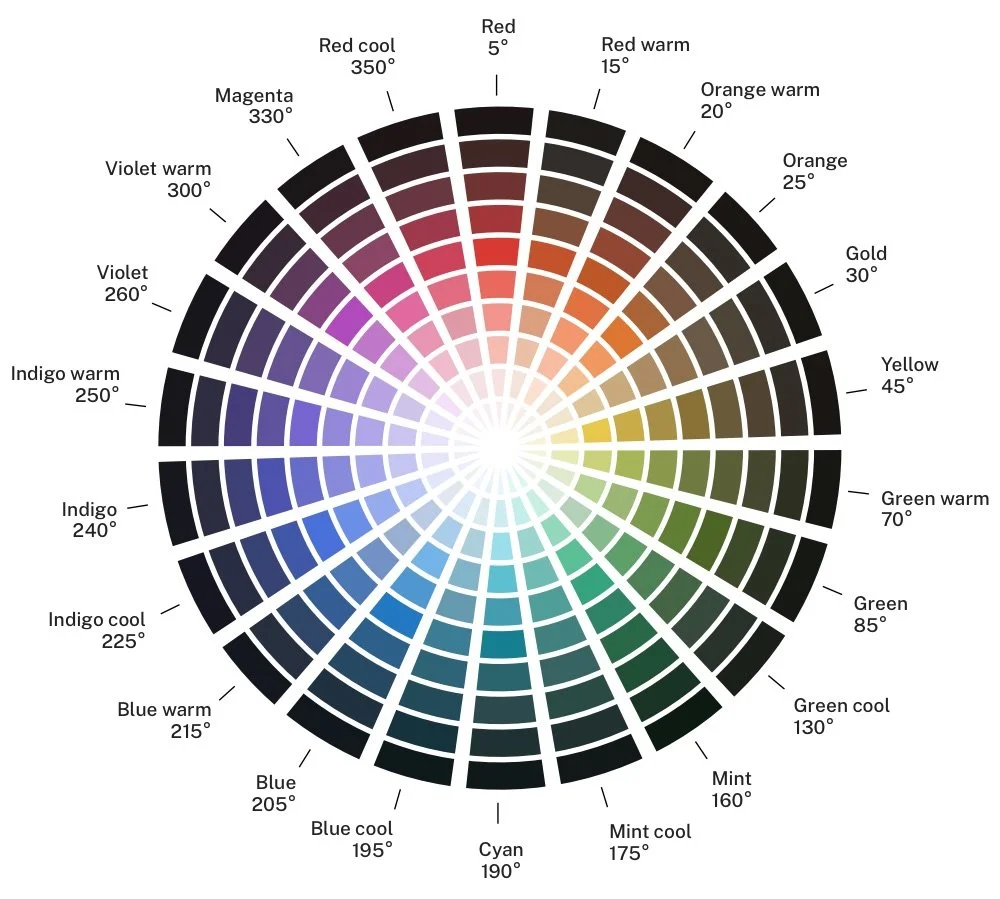
U.S. Web Design System
A practical starting point for service experiences, with component-level accessibility and implementation guidance.
Preview: USWDS · View resource
Free MIT components + paid Pro · React library
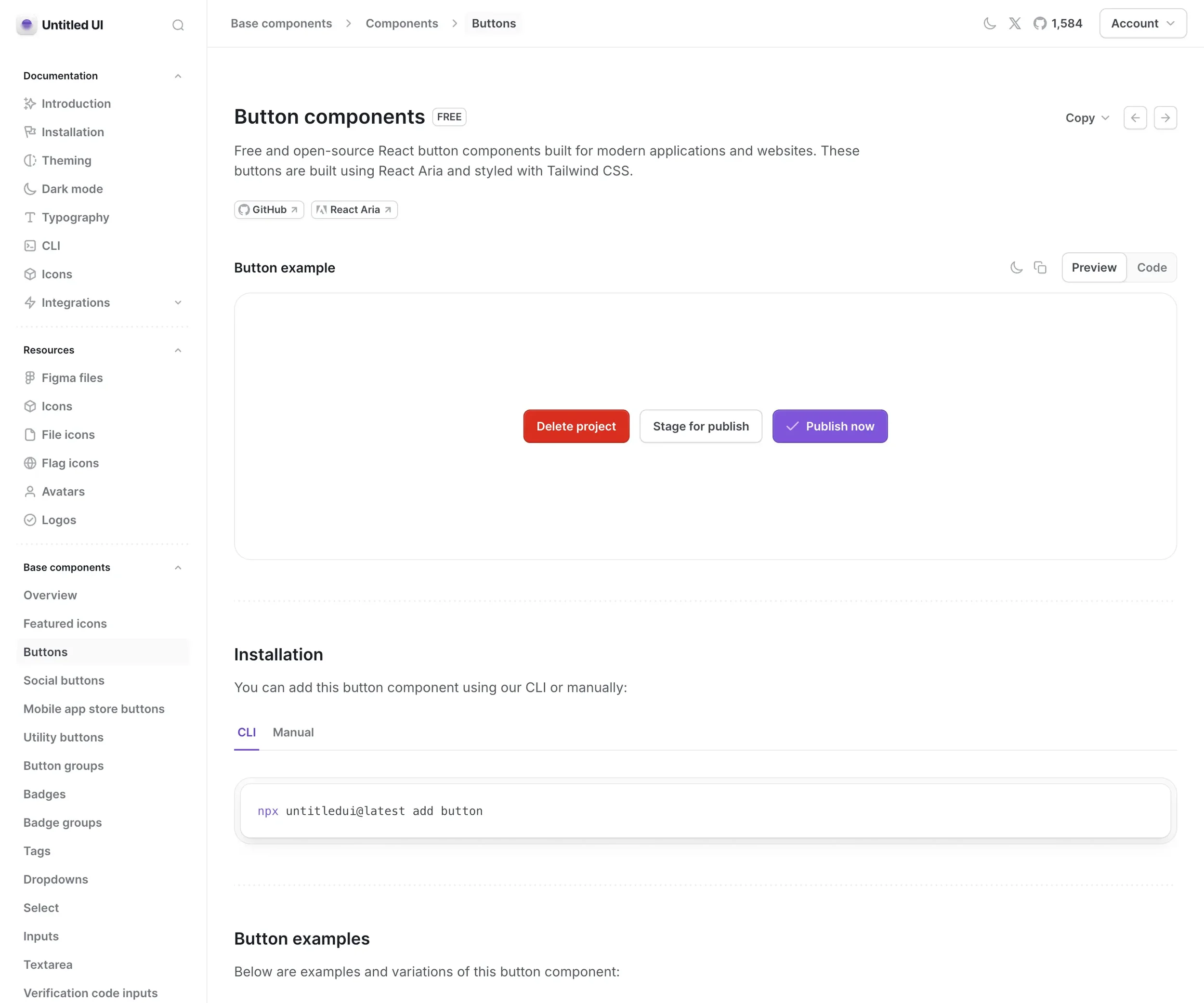
Untitled UI React
A styled React library built on React Aria, with a corresponding Figma kit. Free components and paid Pro content have different licensing. Review the implemented components, not only the Figma file.
Preview: Untitled UI · View resource
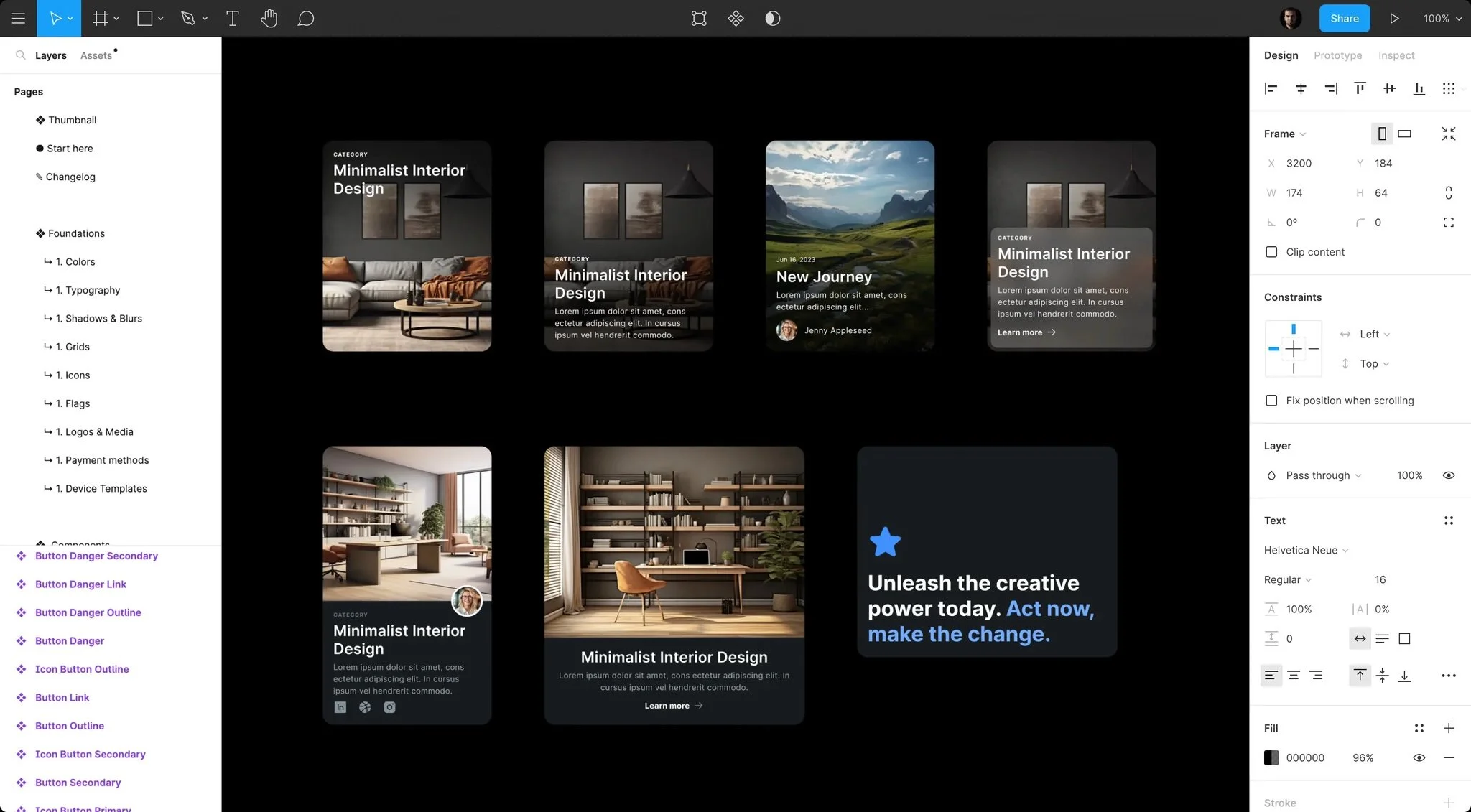
Paid · Figma design system
Prime 6.0
Thalion’s Figma system with semantic tokens, typography variables and light/dark themes. Its creator emphasizes accessibility and APCA-informed color choices. Validate WCAG contrast and implemented behavior separately.
Preview: Prime Design System · View resource
Build & test
Patterns & examples
ARIA Authoring Practices Guide
Look up keyboard interaction, roles and states for common interface patterns. Prefer native HTML when it already provides the behavior you need.
Web tool
WebAIM Contrast Checker
Check foreground and background pairs for text and interface graphics. Image and gradient backgrounds still need checks at the actual text position.
Web tool
Color review
Adjust color pairs while watching their contrast. A useful palette starting point; contrast alone does not establish accessibility.

Content & creators / Representation
Who does AI picture?
Creating with AI means making decisions about who is visible, how they are portrayed, and whose perspective shapes the result.
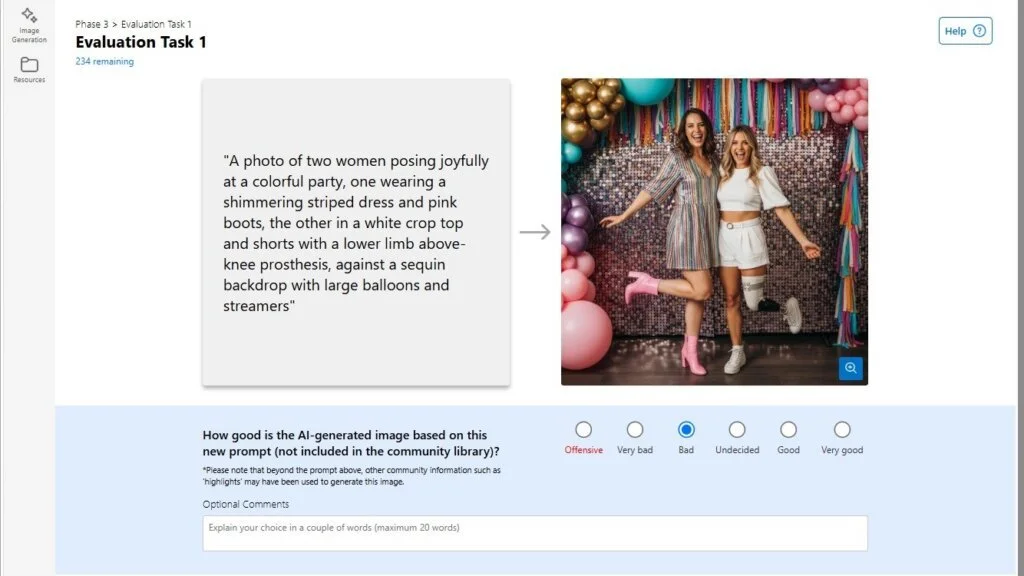
Community members evaluate how AI-generated images represent them. Image: Microsoft, Community Library Creator research.
Microsoft · Research & case study
Community-led representation
Explore how communities define, annotate and evaluate their own representation in generated imagery. This research tool is being used with selected advocacy organizations; it is not a general-purpose public image generator.
Microsoft Advertising · Practical guide
Inclusive image prompting
Develop more intentional image prompts using subject, context and inclusion insights. Review results for stereotypes, agency and accurate disability representation; a detailed prompt does not eliminate bias.
Microsoft Inclusive Design · Guide
In Pursuit of Inclusive AI
Recognize different sources of AI bias and use the guide’s stress-test questions to challenge assumptions in creative and product work.
W3C · Production guidance
Plan accessible audio and video
Plan captions, transcripts and descriptions of meaningful visual information during scripting and storyboarding. Review automated captions before publishing.
W3C · Decision tree
Choose useful alt text
Decide what an image contributes in context before writing its alternative. Review AI-generated descriptions for accuracy and avoid inferring identities or diagnoses.
Motion with purpose
Interactive studies · AI skills
Explore the Motion Lab
Try three motion examples with source skills, accessibility adaptations, and notes on what still needs human review.
Motion · React implementation guide
Implement reduced motion
Learn to adapt motion to user preferences. Select techniques against the AI A11y Toolkit: short, intentional feedback, no loops, parallax, bounce or blur transitions. Reduced-motion support is a baseline, not approval for every effect.
W3C · Pause, stop, hide
Control moving content
Understand when moving or updating content needs controls. For DesignA11y’s stricter motion policy, prefer static presentation and intentional, brief interaction feedback.
Inclusive practice
W3C guidance
Cognitive accessibility guidance
Explore patterns that support understanding, attention and task completion. Use them alongside research with the people your experience is for.
W3C guidance
Involving users in evaluation
Plan accessibility evaluation with disabled people. Combine lived experience, assistive technology testing and technical checks.
Curated October 2026. These are references, not guarantees of an accessible outcome. Product access and features may change.
A little room to unwind.
Brush through the light. Bend the strands, then let them find their way back.
Move or drag to brush. Keyboard: arrows to brush; Space for a gentle pulse. Tab to reset.